
Want to personalize the data displayed in your widget? Meta Ads provides a variety of filters to help you do just that. When creating a custom widget, you’ll find these options in the menu, right below the metric and dimension fields. You can filter your data by Ad ID, Ad Name, Ad Set Name, Age, AI-Generated Creative, Campaign Name, Gender, Objective, and Publisher Platform.
The AI-Generated Creative filter lets you keep Original or AI-generated assets. It only appears when your widget has no dimension, or one of these:
- Ad Account Name
- Ad Account Name (with ID)
- Campaign Name
- Campaign Type
- Ad Set
- Ad Name
- Ad Name with ID
- Ad with Image
- AI-Generated Creative
Creative Enhancement cannot be used as a filter, because Meta does not allow it.
Meta Ads filter can hold several values at once. Separate your terms with a comma and no space, for example Lead,Geo. DashThis then keeps every result that matches at least one of your terms, so the comma works like an “or”. You no longer need one widget per term.
Using Pre-Made Filters in DashThis
In DashThis, we’ve created pre-made filters to help you drill down into your data easily.
For example, let’s add a filter to this multi-column list so that only results related to Facebook are displayed.
Step 1: Click “Edit widget” on the right side of your widget.
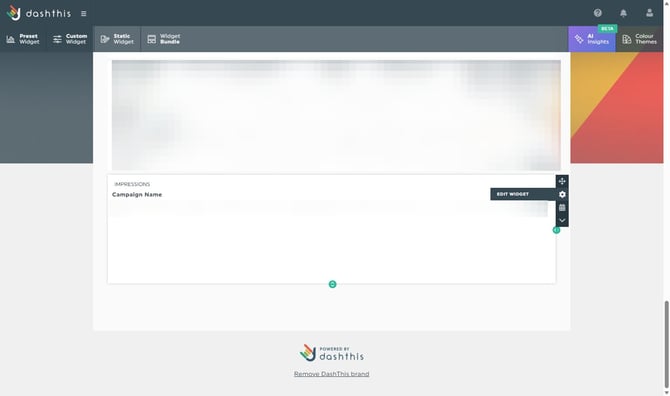
Step 2: In your widget’s basic settings, scroll down to the Filter(s) section.
Step 3: You’ll see three fields:
-
Dimension
-
Value*
-
Result
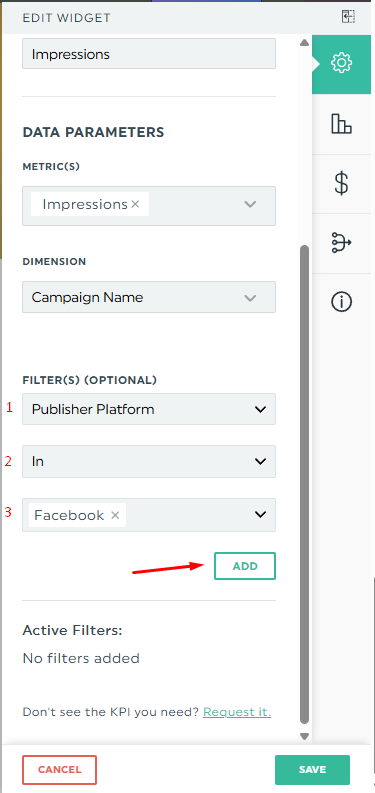
Step 4: Once you’ve made your selection, click ADD, then SAVE.
And that’s it! This is how you can use the pre-made filter option in your widget to display only the data you want.
⚠️ One exception: unique metrics. Meta Ads calculates them on its side and accepts a single filter value only, so a widget that combines one of them with a multi-value filter returns this message: “Oops, Meta Ads doesn’t allow a filter with several values to combine with Reach. Please use a single value in your filter.” For those metrics, keep one term per filter, then merge your widgets to bring your terms together.
Learn more here: How do I merge widgets?
The metrics concerned are:
-
Reach
-
Frequency
-
People Taking Actions
-
Unique Clicks (All)
-
Unique Link Clicks
-
Unique CTR (All)
-
Cost Per Unique Click (All)
-
Cost per Unique Link Click
-
Cost Per Unique Action
-
Cost per 1000 People Reached
You can also segment certain metrics and dimensions by actions to further personalize your data. We have a dedicated article that explains actions in detail, learn more!
Should you have more questions about Meta Ads filters, please reach out to our Support Team. 💪
What's next:
How to see events and custom conversions in Meta Ads
How to compare my Meta Ads data results in DashThis
What are the default attribution settings for my Meta Ads dashboards?