
Why use it?
- Save time: the recap you worked out in the chat goes straight onto your dashboard. No more copy and paste.
- Keep the story next to the numbers: your client reads what happened, why it matters and what comes next, right beside the widgets.
- Stay in control: nothing lands on your dashboard until you approve it, and no comment is replaced without asking you first.
- Keep your formatting: headings, bold, italics, lists, links, tables and colors come through, like a comment you write yourself.
Before you start
- Add a comment box: your dashboard needs at least one. Your assistant can fill a comment box but cannot add one, so add it from the static widgets section first.
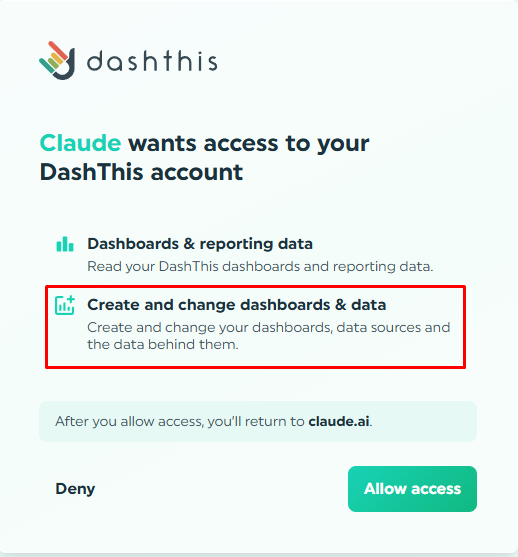
- Allow changes: your assistant needs write access. If you connected DashThis before comments were available, it only has read access. Disconnect DashThis in your assistant, connect again, and approve "Create and change dashboards & data".
- Using a service key? Choose read and write access when you create it. A read-only key cannot write comments.
How does it work?
- Ask for the commentary. Name the dashboard and the period, add "in DashThis" so the right connector is used, and give as much client context as you can (see 💡 Tips for a better comment below).
For example:
"Write a September recap for my [client name] SEO dashboard in DashThis.
Context: their goal is more demo requests from organic search, and we launched their new blog on Sept 10. Check my last emails with [client name] and our last meeting notes too.
Style: a headline in their brand color, green and red indicators for ups and downs, a small summary table, and an emoji next to each highlight." - Refine it as often as you like. Nothing is on your dashboard yet.
- Approve it. If the dashboard has more than one comment box, your assistant asks which one to use.
- Check it in DashThis. Your assistant tells you which box shows the comment and for which period. You can edit it there like any other comment.
💡 Tips for a better comment
Give it the client's context. Your assistant sees the numbers, not what's behind them. Any context that explains the results makes the comment richer, and what's relevant varies from one client to another. For example:
- the client's goals
- what happened this period (campaign launch, budget change…)
- notes from your last meeting
- anything else that explains the results
Connected to your email, Drive or CRM? Just ask: "Check my last emails with [client name] first."
🎨 Make it look like your brand. Here are a few ideas among many:
- your dashboard's colors, if it uses a custom theme (your assistant finds them on its own)
- 🟢 green and 🔴 red indicators for ups and downs
- a small summary table 📊
- emojis next to highlights ✨
- links, bullet lists, and more
Which period does the comment cover?
It depends on whether the dashboard uses flexible periods.
On a dashboard with flexible periods
- One comment for the dashboard: the comment box holds a single comment, whatever dates you or your client pick. A new comment replaces it, so your assistant asks you first.
💡 Tip: say which period it covers
Your client can pick any dates, but the comment stays the same. Start it with its period, like "September recap" or "Q3 highlights", so nobody reads it next to the wrong numbers.
On a dashboard with a fixed period
- The last completed period by default: unless you name one, your assistant writes about the last full period. For example, in mid-October, that is September on a monthly dashboard, and July to September on a quarterly one.
- An earlier period if you name it: another month on a monthly dashboard, another quarter on a quarterly one, or another year on a yearly one.
- One comment per period: the comment box keeps a separate comment for each period.
- Carried forward: the comment also shows in the following periods until one of them gets its own.
- Earlier periods stay as they are: a comment for September never touches the one you left for August.
Can my clients get the recap automatically?
- Your assistant writes one comment at a time. Ask it for each dashboard you want a recap on, or name several dashboards in the same request.
- The comment lives on your dashboard. Anyone who opens the dashboard sees it next to the numbers.
- To send the dashboard to your clients on a schedule, use the Frequency option when you share it by email. See How to share a dashboard.
Send the recap to your client automatically
Your comment box is part of your dashboard, so a scheduled email sends your recap along with the numbers.
- Write the recap. Ask your assistant, as shown above.
- Schedule the email. In your dashboard's sharing options, add your client's email address and pick a frequency. See How to share a dashboard.
- Write the next recap before the next email. Your email shows your dashboard as it looks on the day it is sent.
💡 Tip: keep each recap up to date
A recap stays on your dashboard until you replace it. If you skip a period, your client gets the previous recap next to the new numbers.
Running this for many dashboards? Repeat these steps for each one. To run it from an automation such as n8n, connect with a service key that has read and write access.
Good to know
- Nothing is replaced without your OK: if the comment box already has a comment, your assistant shows you what it says and asks before replacing it.
- Short is better: a comment can hold up to 50,000 characters, but a comment box is read at a glance. A few paragraphs work best.
- Templates and clones start fresh: like any comment, it is not kept when you create a template or clone the dashboard.
Need help with the MCP Connector?
Contact our Support Team here 💪🏼
What's next?