
When creating a new dashboard, choose the integration(s) and connect your source(s)
Now that you have a source connected to your dashboard, it's time to try out the new widget bundle feature.
- In the widget menu, click on Widget Bundle

- Click on the integration
- Click on your source and next
- Choose one (or more) of the categories
- To see which metrics are included in the bundle before creating it, click on the side arrow to see the list of metrics.
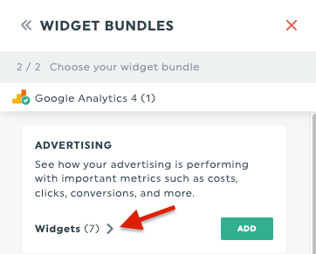
- In the drop-down list, you will see the widget graph type icon and the metric
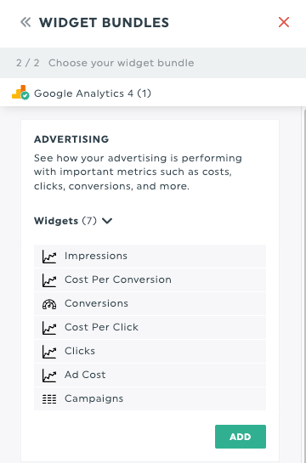
- To see which metrics are included in the bundle before creating it, click on the side arrow to see the list of metrics.
- Click on ADD
Important: At this time is it not possible to custom-select individual metrics from categories to combine them into new bundles. If this is a feature you would like to see, please submit a feature request to our Support Team.
There are a lot of widget bundle categories:
- Advertising
- Conversions
- Ecommerce Revenue
- Ecommerce Transactions
- Event
- SEO
- Website Engagement
- Website Traffic Overview
- AI Referral Traffic Overview
- Geo Versus SEO
- Geo Versus PPC
It’s currently not possible to insert an entire bundle at a specific position or move the bundle as a single group. It will automatically be added to the bottom of your dashboard.
Should you need assistance with the widget bundle feature, please reach out to our Support Team 😎