
What can DashThis AI do?
- Answer questions: ask about the results on screen, like what changed most since the last period.
- Change widgets: their titles, filters and dimensions, or their shape and size.
- Add or remove widgets and sections: for example, a Highlights section with a text block.
- Restyle the dashboard: rename it, change its colors, or match a company's brand colors and logo from its website.
- Get AI Insights: on the period you're looking at, ready to copy or add to a comment box.
How do you open DashThis AI?
- Open the dashboard you want to work on.
- Click the DashThis AI button in the dashboard bar. You can also type your request in the field beside it, then press Enter.

- Pick a suggestion, or type a question or a change, then press Enter.
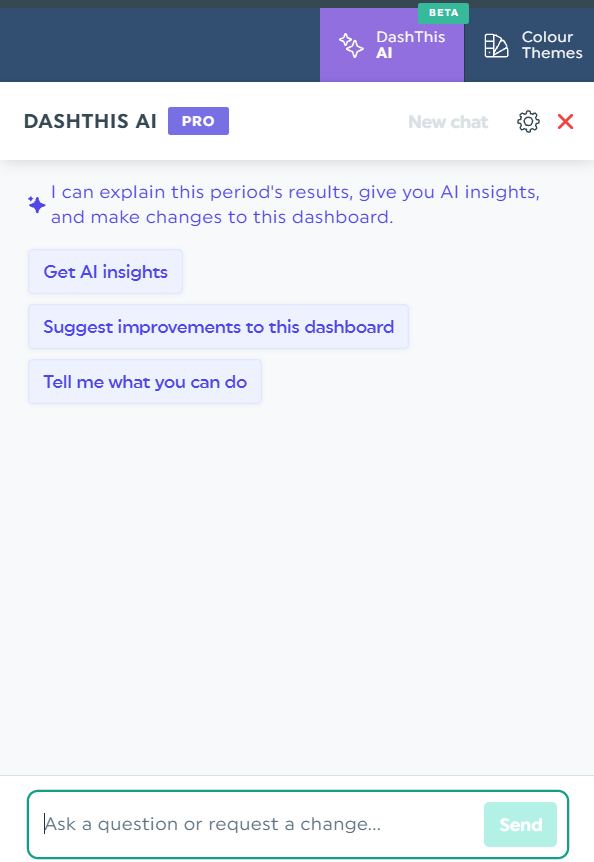
- Read the answer. When DashThis AI suggests changes, review them on the card it shows.
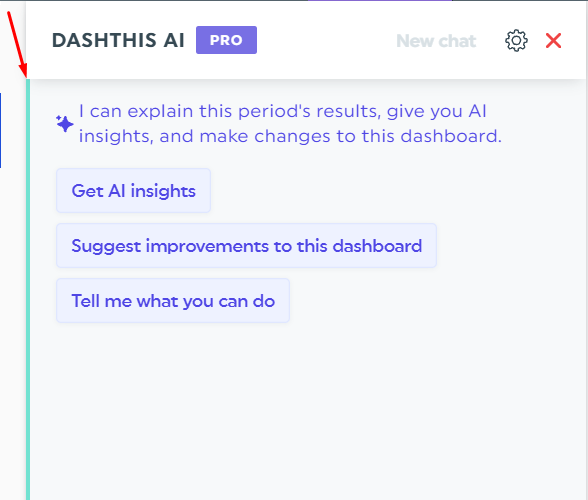
To make the panel wider or narrower, drag its edge. Double-click the edge to bring back its usual width.
How do changes work?
DashThis AI never changes your dashboard on its own. It first shows a card that lists each change.
- Apply: saves the changes. The page reloads and your chat opens again.
- Discard: drops the changes, and nothing is saved.
- Leave out a change: uncheck it, then apply the rest.
In Edit widget, a banner offers DashThis AI instead of the settings. Click Try it to save the widget and open the chat, or close the banner to hide it.
How do you get AI Insights?
DashThis AI offers four kinds of insights:
- Summary: key metrics at a glance.
- Opportunities: ways to boost your results.
- Wins: what worked well.
- Issues: drops and anomalies.
- Click the Get AI insights button in the chat.
- Pick a language from the Insights in list if you want the insights in another language. You can also click the Context button to tell DashThis AI what matters most on this dashboard.
- Choose the kind of insight you want, such as Summary or Wins.
- Check the insights you want to keep. Then click Copy to paste them anywhere, or Add to a comment box to put them on your dashboard.
If the comment box already holds text, DashThis AI asks whether to add to it or replace it. Like any change, it waits for you to click Apply.
How are requests counted?
Each message you send to DashThis AI counts as one request. Getting AI Insights or adding them to a comment box counts as one too. Every account gets 100 free requests per month, and the panel shows how many you have left.
AI Pro gives you unlimited requests, subject to a fair use policy. It costs $19 per month, or $15 per month billed annually, on top of your plan.
You can try AI Pro free for 7 days from the panel. A payment method must be on file to start the trial, and each account can use the free trial once. You won't be charged during the 7 days.
To cancel AI Pro, click the gear icon at the top of the panel to open DashThis AI settings. Then click Cancel plan, or Cancel anytime during the trial.
You keep AI Pro until the end of your billing period. If you cancel during the free trial, nothing is billed.
During your DashThis free trial, you can send up to 25 messages to DashThis AI. After that, choose a plan to keep using it.
How do you give DashThis AI context?
With AI Pro, you can tell DashThis AI what matters on a dashboard, such as its key KPI or the tone to use. DashThis AI keeps it in mind in every answer on that dashboard. On the free plan, the field stays locked.
- Click the gear icon at the top of the panel, or the Context button on the insights card.
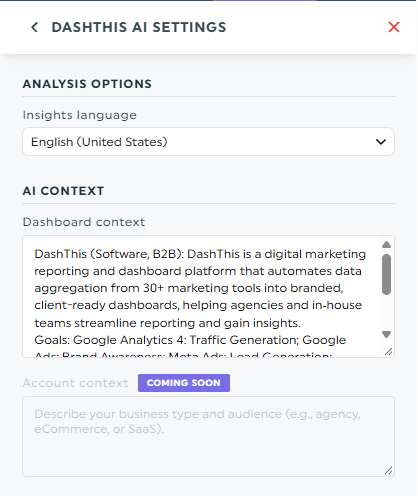
- Type your instructions in the Dashboard context field, up to 2,000 characters.
- Click Save changes.
Is your data private?
DashThis AI only reads your dashboard when you send it a message. It never scans your account on its own.
To write its answers, DashThis AI uses OpenAI. OpenAI does not store your dashboard data and never uses it to train AI models.
Good to know
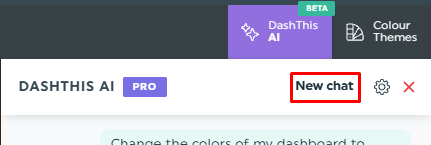
- Start over: click New chat at the top of the panel.
- Small screens: when the dashboard bar is short on room, the request field hides. Click DashThis AI instead.
- Long messages: each message can be up to 4,000 characters.
Need help with DashThis AI?
Contact our Support Team here 💪🏼

What's next?