
What can DashThis AI do?
- Answer questions: ask about the results on screen, like what changed most since the last period.
- Change widgets: their titles, filters and dimensions, or their shape and size.
- Add or remove widgets and sections: for example, a Highlights section with a text block.
- Restyle the dashboard: rename it, change its colors, or match a company's brand colors and logo from its website.
- Get AI Insights: on the period you're looking at, ready to copy or add to a comment box.
How do you open DashThis AI?
- Open the dashboard you want to work on.
- Click DashThis AI in the dashboard bar. You can also type a request in the Ask to change anything on this dashboard field beside it, then press Enter.

- Pick a suggestion, or type a question or a change, then press Enter.
- Read the answer. When it suggests changes, review them on the card it shows.
To make the panel wider or narrower, drag its edge. Double-click the edge to bring back its usual width.
How do changes work?
DashThis AI never changes your dashboard on its own. It first shows a card that lists each change.
- Apply: saves the changes. The page reloads and your chat opens again.
- Discard: drops the changes, and nothing is saved.
- Leave out a change: uncheck it, then apply the rest.
In Edit widget, a banner offers DashThis AI instead of the settings. Click Try it to save the widget and open the chat, or close the banner to hide it.
How do you get AI Insights?
- Click Get AI insights in the chat.
- Choose a type: Key metrics at a glance, What worked well, Drops and anomalies, or Ways to boost your results.
- Pick a language beside Insights in, or click Add context to say what matters on this dashboard (optional).
- Select the insights you want, then click Copy or Add to a comment box.
If the comment box already holds text, DashThis AI asks whether to add to it or replace it. Like any change, it waits for you to click Apply.
How are requests counted?
Each message you send to DashThis AI counts as one request. Requests are shared with AI Insights, so every account gets 100 free requests per month. AI Pro gives you unlimited requests, and you can try it free for 7 days from the panel. The panel shows how many free requests you have left this month.
During your DashThis free trial, you can send up to 25 messages to DashThis AI. After that, choose a plan to keep using it.
Good to know
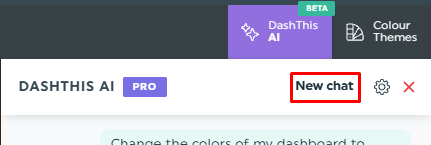
- Start over: click New chat at the top of the panel.
- Small screens: when the dashboard bar is short on room, the request field hides. Click DashThis AI instead.
Need help with DashThis AI?
Contact our Support Team here 💪🏼

What's next?