
When you connect: Google may ask for a passkey
Starting August 5, 2026, Google may ask you to set up a passkey before you authorize or reauthorize your Google Ads account. If you do not have one yet, you may be prompted to create it. A newly created passkey can take up to 7 days before Google allows it to be used for Google Ads authorization.
Which campaign types you can report on
DashThis supports every Google Ads campaign type (Advertising Channel): Demand Gen (formerly Discovery), Display, Hotel, Local, Local Services, Multi-Channel (App campaigns), Performance Max, Search, Shopping, Smart (legacy Smart campaigns), Travel, and Video.
To focus a widget on one campaign type, add a Campaign Advertising Channel type filter and pick the type you want. Without a filter, every campaign type appears.
Local Services Ads
-
Local Services as a Google Ads advertising channel: if your Google Ads account runs Local Services campaigns, that data comes in through the Google Ads integration like any other channel, with the usual metrics such as impressions, clicks, cost, and conversions. This is available in DashThis.
- To see only your Local Services campaigns and ads, add a Campaign Advertising Channel filter and pick Local Services.
- Reporting on your Local Services leads: DashThis also reads your Local Services leads directly, with their own metrics (Leads, Charged Leads, Phone Leads, Message Leads and Conversations) and their own dimensions (Lead Type, Service Category and Charge Status). You will find them grouped under Leads in the widget editor.
- Lead widgets accept four breakdowns. Use a lead metric on its own as a single total, or break it down by Date, Lead Type, Service Category or Charge Status. Any other dimension returns an error.
- Conversations needs its own widget. It comes from a different Google Ads report again, so it works only as a single total. It cannot be broken down by any dimension, and it cannot sit in the same widget as the other lead metrics.
Auction Insights data is not available
Competitor share-of-auction data is not available through Google's API, so it cannot appear in any third-party tool, including DashThis. You can still view it in your Google Ads account under Insights › Reports › Auction Insights. To bring it into DashThis manually, see this article.
Reporting on Performance Max campaigns
The Video advertising channel in DashThis reports on standalone Video campaigns, such as YouTube, not on the video assets running inside a Performance Max campaign.
Google does not return age or gender demographics for Performance Max campaigns.
DashThis is expanding its Performance Max reporting, and more detailed data on these campaigns is coming. This article will be updated as new breakdowns become available.
How conversion data refreshes
Google Ads conversions can be credited days or weeks after someone sees your ad. To capture late conversions, DashThis refreshes conversion metrics for the current period and the previous 30 days. A conversion credited up to 30 days after your dashboard period ends still updates your widgets.
Metric and dimension combinations that will not work
Google's API restricts some Shopping combinations. These pairings return no data:
-
Shopping dimensions with Conversion Rate or All Conversion Rate: not supported for any Shopping dimension.
-
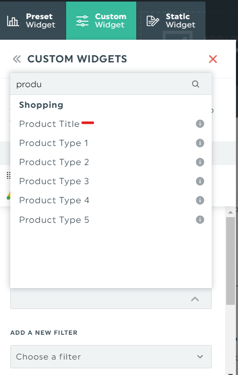
Product Title with conversions: the Product Title dimension cannot be combined with conversion-related metrics (Conversions, Conversion Value, Cost per Conversion, ROAS, and similar) or with the Conversion Name and Conversion Category filters.
How ads and previews display
-
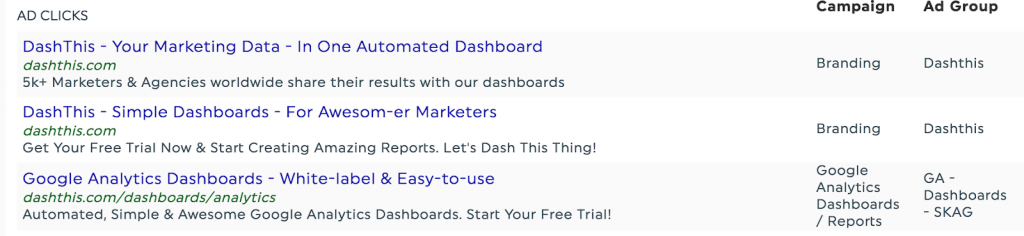
Ad dimension in a Multi-Column List widget: the Ad dimension (also labeled Search Ad with Preview) recreates a Google search result showing your Ad, Campaign, and Ad Group. It is available only in a Multi-Column List widget.
- Video ads show text, not a thumbnail: for video ad formats, DashThis displays the ad title and description, but Google's API does not provide a thumbnail, so no image appears.
-
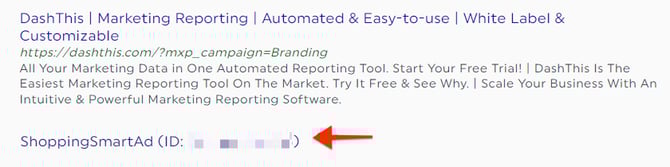
Shopping ads show an ID, not a creative: Google returns Shopping ads as dynamic ads with no title or image, so DashThis shows the ad type and its ID instead of the creative. To report on product names, use the Product Title dimension.
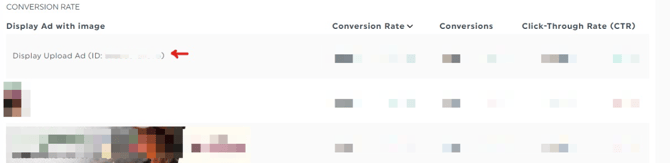
- Some ad types show only an ad ID: when Google’s API does not return a rendered preview for an ad type, DashThis shows the ad type and its ID (for example Shopping Ad (ID: 123...) or Call Only Ad (ID: 123...)) instead of an image or description. Your metrics are still reported correctly.
Connect Google Ads to Google Analytics
To analyze what visitors do on your site after they click, link your Google Ads account to your Google Analytics account. See Google's guide on linking Google Ads and Analytics.
Need help with Google Ads?
Contact our Support Team here 💪🏼
What's next?