
Why use it?
- Save time: the recap you worked out in the chat goes straight onto your dashboard. No more copy and paste.
- Keep the story next to the numbers: your client reads what happened, why it matters and what comes next, right beside the widgets.
- Stay in control: nothing lands on your dashboard until you approve it, and no comment is replaced without asking you first.
- Keep your formatting: headings, bold, italics, lists, links, tables and colors come through, like a comment you write yourself.
Avant de commencer
- Add a comment box: your dashboard needs at least one. Your assistant can fill a comment box but cannot add one, so add it from the static widgets section first.
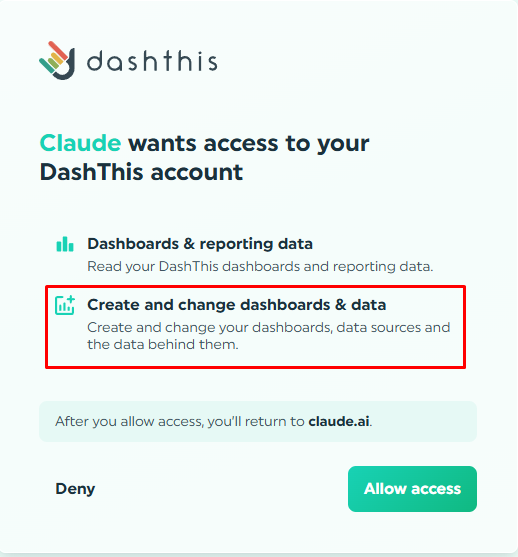
- Allow changes: your assistant needs write access. If you connected DashThis before comments were available, it only has read access. Disconnect DashThis in your assistant, connect again, and approve "Create and change dashboards & data".
- Using a service key? Choose read and write access when you create it. A read-only key cannot write comments.
Comment cela fonctionne-t-il ?
- Ask for the commentary, naming the dashboard and the period.
For example: "Write a short recap of September for my Acme SEO dashboard in DashThis, with three highlights and one thing to watch."
Adding "in DashThis" makes sure the right connector is used. How the period works depends on your dashboard, as explained below. - Refine it as often as you like. Nothing is on your dashboard yet.
- Approve it. If the dashboard has more than one comment box, your assistant asks which one to use.
- Check it in DashThis. Your assistant tells you which box shows the comment and for which period. You can edit it there like any other comment.
💡 Tip: make it yours!
Your assistant can style the comment any way you like. Try asking for:
- 🎨 a headline in your client's brand color
- 🟢 green for what went up, 🔴 red for what went down
- 📊 a small table with your key numbers
- ✨ an emoji next to each highlight
The comment box shows it all, like a comment you format yourself.
Which period does the comment cover?
It depends on whether the dashboard uses flexible periods.
On a dashboard with flexible periods
- One comment for the dashboard: the comment box holds a single comment, whatever dates you or your client pick. A new comment replaces it, so your assistant asks you first.
💡 Tip: say which period it covers
Your client can pick any dates, but the comment stays the same. Start it with its period, like "September recap" or "Q3 highlights", so nobody reads it next to the wrong numbers.
On a dashboard with a fixed period
- The last completed period by default: unless you name one, your assistant writes about the last full period. For example, in mid-October, that is September on a monthly dashboard, and July to September on a quarterly one.
- An earlier period if you name it: another month on a monthly dashboard, another quarter on a quarterly one, or another year on a yearly one.
- One comment per period: the comment box keeps a separate comment for each period.
- Carried forward: the comment also shows in the following periods until one of them gets its own.
- Earlier periods stay as they are: a comment for September never touches the one you left for August.
Bon à savoir
- Nothing is replaced without your OK: if the comment box already has a comment, your assistant shows you what it says and asks before replacing it.
- Short is better: a comment can hold up to 50,000 characters, but a comment box is read at a glance. A few paragraphs work best.
- Templates and clones start fresh: like any comment, it is not kept when you create a template or clone the dashboard.
Vous avez besoin d'aide concernant le connecteur MCP ?
Contactez notre équipe d'assistance ici 💪🏼
Quelle est la prochaine étape ?
Boîte à commentaires - Comment ça marche ?